


Getting a new phone is exciting, until you realize that all your important numbers are still stuck on the old one. Family, friends, clients, your doctor, that plumber you can never find when you need him. Losing even a few of those contacts can be a real headache.
The good news is that learning how to transfer contacts from Android to Android is much easier than most people think. You don’t need a computer, special software or any technical skills. Depending on your situation, you can move everything in two or three minutes.
In this guide, I’ll walk you through seven reliable ways to move contacts to a new Android phone, explain which method suits which situation, and show you how to fix the common problems that pop up along the way.
Before You Start: A Quick Checklist
A little preparation saves a lot of trouble later. Before you begin, do these four things:
- Charge both phones to at least 50%, so nothing shuts off mid-transfer.
- Connect to Wi-Fi, since some methods need an internet connection.
- Know your Google account details. You’ll need the email and password you use on your old phone.
- Check the storage on both phones. If the old phone is full, a backup may fail, so it helps to free up space on Android first.
Also, take a quick look at your contacts list and delete duplicates and old numbers you no longer need. Why carry the clutter to a new phone?

How to Transfer Contacts From Android to Android: 7 Methods
Here are the seven methods, starting with the easiest. For most people, Method 1 is all you’ll ever need.
1. Transfer Contacts Using Your Google Account
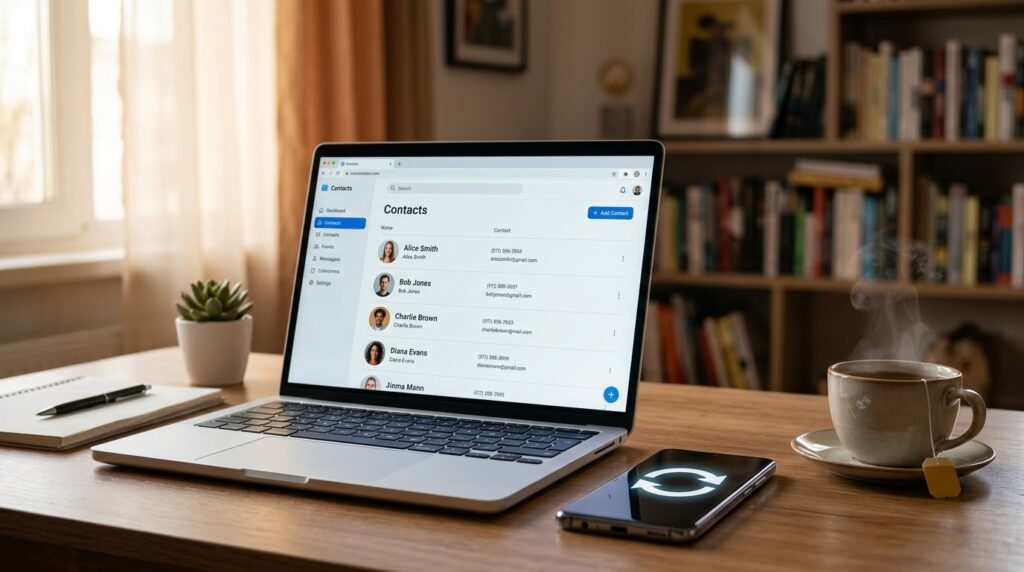
This is the best way to transfer contacts from Android to Android, because it’s automatic and works for almost every phone brand. Your contacts are saved to your Google account online, and your new phone simply pulls them down.
On your old phone:
- Open Settings > Google > Settings for Google apps > Google Contacts sync
(on some phones it’s under Settings > Accounts > Google). - Tap Also sync device contacts, then turn on Automatically back up & sync device contacts.
- Wait a minute or two for the sync to finish.
On your new phone:
- Sign in with the same Google account (during setup or in Settings > Accounts > Add account).
- Open the Contacts app. Your contacts should appear within a few minutes.
You can also check that everything uploaded correctly by opening contacts.google.com on any browser and logging in. If you see your list there, you’re safe.
2. Export and Import a VCF File
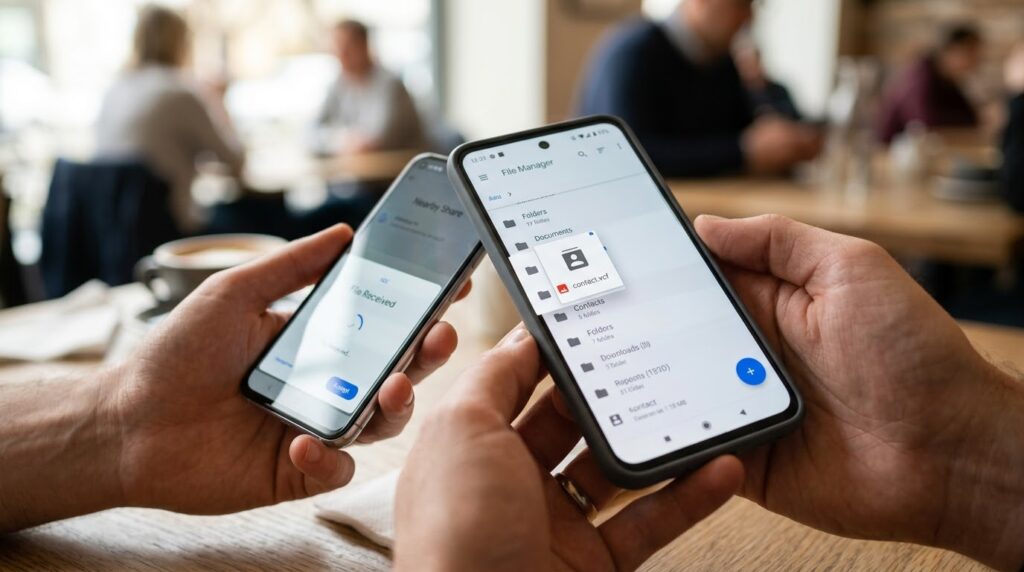
A VCF (vCard) file is basically a small file that holds all your contacts. This method is great when you don’t want to use a Google account or when sync isn’t working.
On your old phone:
- Open the Contacts app and tap the menu (three lines or three dots).
- Go to Settings > Export (on Samsung: Manage contacts > Import or export contacts > Export).
- Choose Export to .vcf file and save it.
Move the file to your new phone using WhatsApp, email, Bluetooth, Quick Share or a USB cable.
On your new phone:
- Open the Contacts app, go to the menu, and tap Import.
- Choose the .vcf file and select where to save the contacts.
It’s simple and works even without an internet connection.
3. Use Your SIM Card
This is the old-school way, and it still works if you have a small number of contacts.
- On the old phone, open Contacts > Settings > Export and choose SIM card.
- Take out the SIM and put it into the new phone.
- On the new phone, open Contacts > Settings > Import and choose SIM card.
There’s a catch, though. A SIM card can store only around 200 to 250 contacts, long names may get cut off, and each contact can keep just one number. So use this method only for small lists or as a last resort.
4. Send Contacts Through Bluetooth
Bluetooth is slow, but it needs no internet and no cables, which makes it handy in a pinch.
- Turn on Bluetooth on both phones and pair them.
- On the old phone, open Contacts, select the contacts you want (or choose Select all).
- Tap Share > Bluetooth and pick your new phone.
- Accept the file on the new phone and save it to your contacts.
Keep the phones close to each other during the whole process.
5. Share Contacts Using WhatsApp, Email or Quick Share
If you only need to move a few numbers, you don’t need to export everything.
Open the contact, tap Share, and send it using WhatsApp, email or Quick Share (formerly Nearby Share). The other phone receives a small contact card, and one tap saves it.
For many contacts, it’s better to share the VCF file from Method 2 using any of these apps, which is the same thing in one go.
6. Use the Brand’s Transfer App
Most phone brands have their own tool that copies contacts, messages, photos and apps in one go:
- Samsung: Smart Switch
- Xiaomi/Redmi/Poco: Mi Mover
- Oppo/Realme/OnePlus: Clone Phone
- Huawei/Honor: Phone Clone
Install the app on both phones, follow the on-screen steps, and select Contacts (and anything else you want). These tools are especially useful if you’re moving everything at once, not only your contacts.

7. Use Android’s Built-In Setup Copy Feature
When you set up a new Android phone for the first time, there’s a screen called Copy apps & data. You can connect the old and new phones with a cable or wirelessly, and Android will copy your contacts, messages and settings automatically.
This only appears during first-time setup (or after a factory reset), so it’s best when you’ve just taken the new phone out of the box.
Which Method Should You Choose?
If you’re not sure which way to go, this simple guide helps:
- Everyday users: Use the Google account sync (Method 1). It’s the fastest and safest option.
- No internet or no Google account: Use a VCF file (Method 2).
- Only a few numbers: Use Share (Method 5).
- Moving the whole phone: Use the brand’s transfer app (Method 6) or Android’s setup copy (Method 7).
- Old basic phone with small contact list: Use the SIM card (Method 3).
Common Problems and How to Fix Them
Even when you follow the steps, things sometimes don’t go perfectly. Here are the most common problems
Contacts Not Showing on the New Phone
Open the Contacts app, tap the menu, and look for Contacts to display or Filter. Make sure All contacts or your Google account is selected. Many contacts seem missing when they’re just hidden by a filter.
Contacts Are Not Syncing
Check that you’re signed in to the correct Google account, that you have an internet connection, and that Sync is turned on in Settings > Accounts > Google. Try tapping Sync now and wait a few minutes. Restarting the phone also helps.
Duplicate Contacts After Transfer
This happens when contacts are saved in multiple places, such as the phone, SIM and Google. Open Contacts > Fix & manage > Merge & fix and let Android merge the duplicates automatically.
The VCF File Won’t Open or Import
Make sure the file ended with .vcf and wasn’t renamed or compressed. Try importing from within the Contacts app instead of tapping the file directly. If it still fails, export the file again from the old phone.
Names Look Strange or Characters Are Broken
This usually happens with SIM transfers, especially for names written in Urdu or other non-English scripts. Use Google account sync or a VCF file instead, since they preserve all characters properly.
The New Phone Feels Slow After Setup
After restoring a lot of data, a phone may work hard in the background for a while and use extra power. If the battery drains too quickly, take a look at our guide on why your phone battery is dying so fast. And if your phone behaves strangely in other ways too, it may help to understand why your phone is acting weird.
Tips to Keep Your Contacts Safe in the Future
Once your contacts are on the new phone, make sure you never lose them again:
- Keep Google Contacts sync turned on at all times.
- Export a VCF backup every few months and save it in Google Drive or email it to yourself.
- Save new contacts to your Google account, not only to the phone or SIM.
- Don’t factory reset or sell your old phone until you’ve confirmed all contacts are on the new one.
Frequently Asked Questions
What is the easiest way to transfer contacts from Android to Android?
The easiest way is to sync them with your Google account. Turn on contact sync on the old phone, log in with the same account on the new phone, and everything appears automatically.
Can I transfer contacts without a Google account?
Yes. You can export a VCF file, use your SIM card, send contacts through Bluetooth, or use your phone brand’s transfer app. None of these need a Google account.
Can I transfer contacts from Android to Android without internet?
Yes. A VCF file shared by Bluetooth, a USB cable or a SIM card works completely offline.
How long does it take to transfer contacts?
Most methods take only a few minutes. Syncing hundreds of contacts through Google may take a little longer, but it usually finishes in under five minutes.
Will my old phone still have the contacts after transfer?
Yes. Transferring only copies your contacts. The originals stay on the old phone until you delete them.
Can I move contacts between different phone brands?
Absolutely. Google account sync and VCF files work between all brands, such as Samsung to Xiaomi or Oppo to Vivo.
Final Thoughts
Now you know how to transfer contacts from Android to Android in several simple ways. For most people, Google account sync is the best choice because it’s automatic and keeps your contacts safe for the future. If that doesn’t suit you, a VCF file, SIM card or your phone brand’s transfer app will do the job just as well.
Take a few minutes before switching phones to back up your contacts, and double-check the new phone before wiping or selling the old one. With a little care, moving your contacts to a new Android phone is quick, painless and completely stress-free.


