

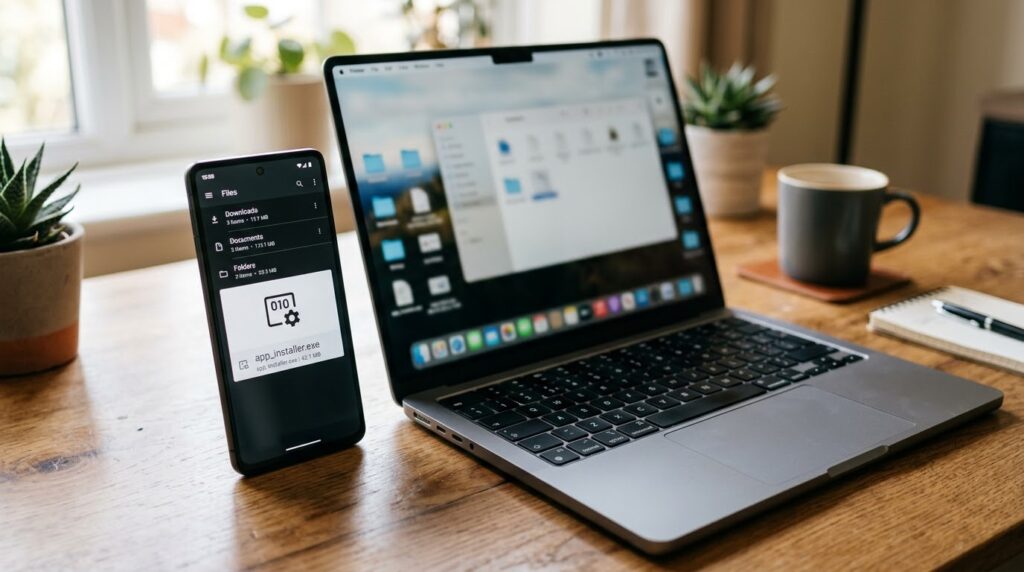
You download a file, tap it, and nothing happens. Or you get a message saying “Can’t open file.” When you look closer, you notice the file ends with .exe. If you’ve ever tried this, you already know the frustration. EXE files are made for Windows computers, and Android doesn’t understand them out of the box.
But here’s the good news: it’s not impossible. If you’re searching for how to open EXE file on Android, there are real, working ways to do it, from emulators to remote access to simply looking inside the file. Some methods are easy, and some need a bit of patience, so I’ll be honest about what works well and what doesn’t.
In this guide, I’ll explain why Android can’t open EXE files by default, then walk you through seven safe methods, and finish with the safety rules you shouldn’t skip.
Why Android Can’t Open EXE Files Directly
An EXE file (short for “executable”) is a program written for the Windows operating system and the type of processor found in most PCs. Android is a completely different system, and most Android phones use a different type of processor too (ARM instead of x86).
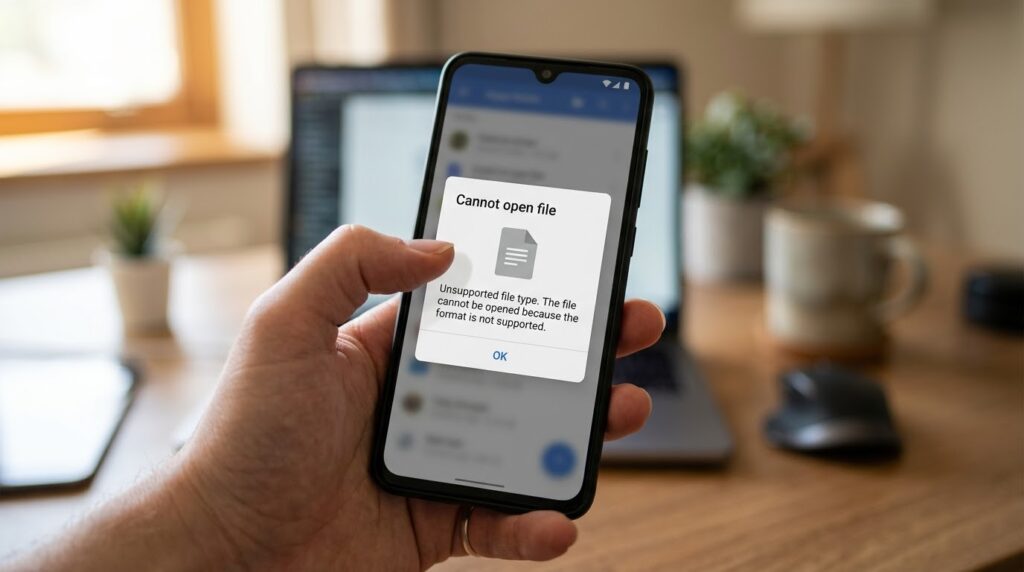
Think of it like trying to play a Blu-ray disc in a cassette player. The file isn’t broken. Your phone just doesn’t speak that language.
Android apps use the APK format instead. So, to run an EXE file on Android, you need something in the middle, such as an emulator, a remote connection, or a tool that opens the file as an archive. That’s exactly what the methods below do.
Before You Start: Check These Things First
Before you spend time on complicated methods, ask yourself three questions:
- What is the file? Is it a game, a Windows installer, a document, or something a stranger sent you? If you don’t know where it came from, don’t open it.
- Is there an Android version? Many programs have an Android app or a website version that works better than any workaround.
- How powerful is your phone? Emulators need a decent processor and at least 6 GB of RAM to run smoothly.
Also keep in mind that large installers and emulator files take plenty of space. If your phone is running low, clean it first with our guide on how to free up space on Android.
How to Open EXE File on Android: 7 Methods
Here are the seven methods, starting with the simplest and safest.
1. Look for an Android Version of the Program
This is the easiest solution, and many people skip it. If the EXE file is a popular program or game, there’s a good chance the same thing exists as an Android app.
Search for the program name in the Google Play Store. If it’s a document tool, a media player or a game, you’ll often find an official Android version that works perfectly and needs no tricks at all. Many programs also have a web version you can use in Chrome.
Only move on to the other methods if no Android version exists.
2. Use Winlator to Run EXE Files
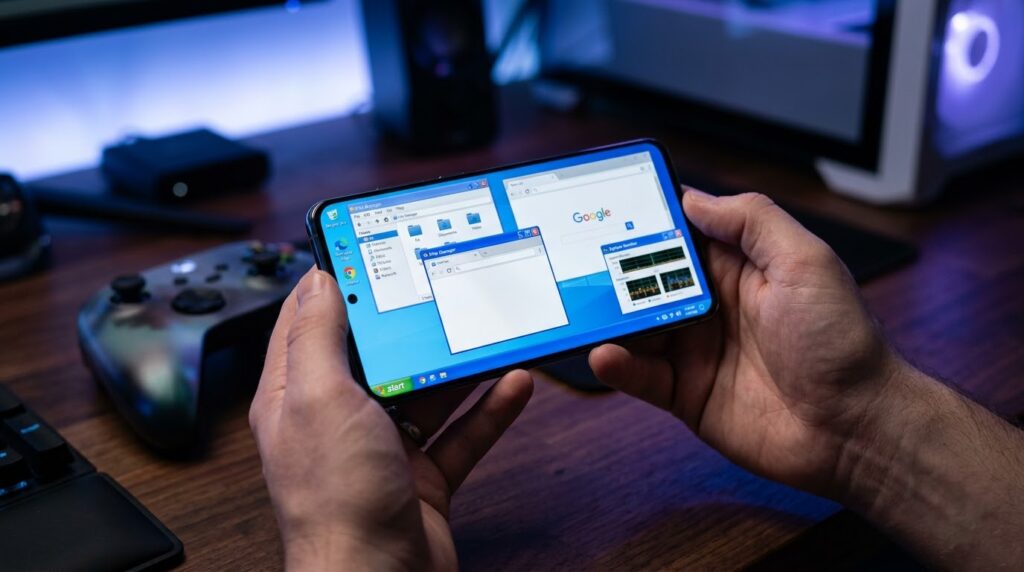
Winlator is the most popular answer to how to open EXE file on Android and actually run it. It’s a free, open-source app that combines Wine and other tools to run Windows programs on Android phones.
How to use it:
- Download Winlator from its official GitHub page. It isn’t always on the Play Store, so be careful about copies on random websites.
- Install it and let it set up its Windows environment (this takes a few minutes).
- Copy your EXE file to your phone’s storage.
- Open Winlator, create a container, and launch your EXE from there.
What to expect: Light programs and older games can run fairly well on phones with a strong processor (Snapdragon chips usually work best). Heavy modern games, on the other hand, may lag or crash. It also drains the battery fast, so keep the charger nearby, and if you notice a sudden drop, read why your phone battery is dying so fast.
3. Control a Windows PC With Remote Desktop
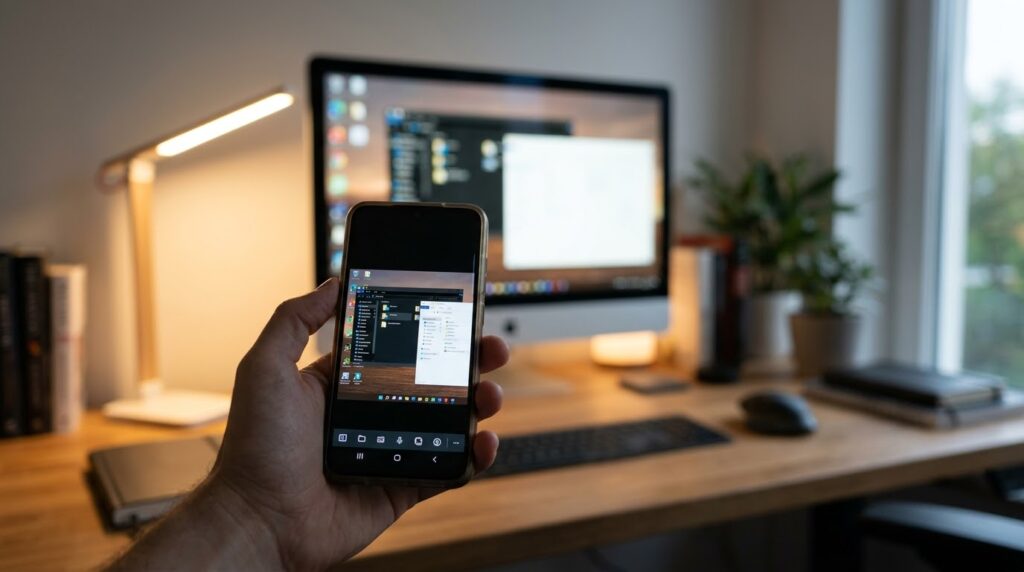
If you have a Windows computer at home or work, you don’t have to run the EXE file on your phone at all. Instead, you can control your PC from your Android phone and open the file there.
Good apps for this are Chrome Remote Desktop (free) and Microsoft Remote Desktop.
- Install the remote desktop software on your PC and sign in.
- Install the matching app on your Android phone and log in with the same account.
- Connect to your PC, and you’ll see your Windows screen on your phone.
- Open the EXE file as you normally would.
This is the most reliable way to use Windows programs on Android, because the program is really running on a real PC. The only requirements are a working internet connection and a PC that stays turned on.
4. Use a Cloud PC or Cloud Gaming Service
If you don’t own a computer, you can rent one online. Cloud PC services give you a Windows desktop that you open through an app on your phone. You can upload and run your EXE files there.
Cloud gaming services work in a similar way for games. They run the game on powerful servers and stream the picture to your phone.
The drawbacks are that most good services are paid, and you need a fast, stable internet connection. For occasional use, though, it’s a clean and safe option.
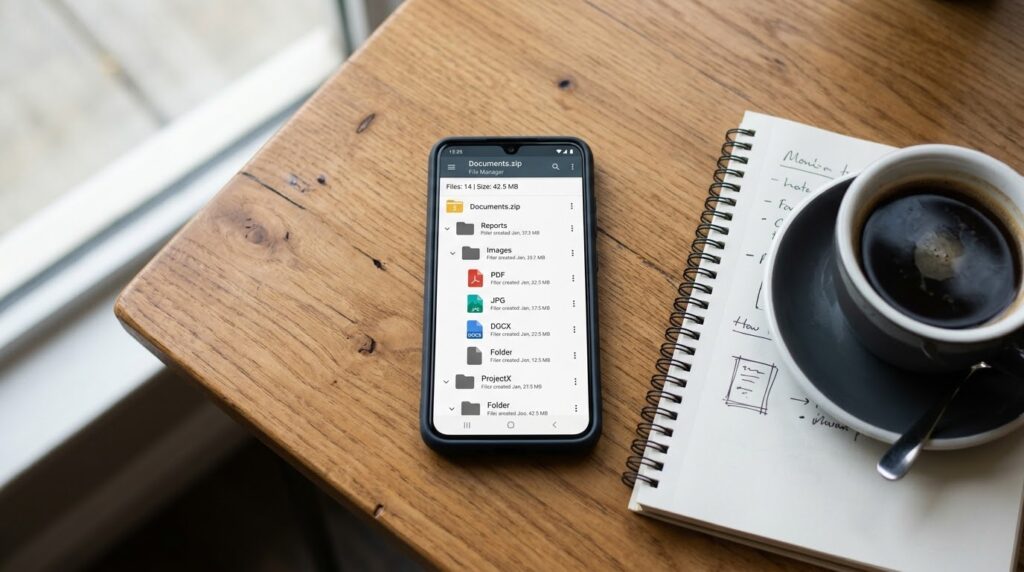
5. Open the EXE as an Archive (Just to See What’s Inside)
Sometimes you don’t actually need to run the program. You just want to get something out of it. Some EXE files are self-extracting archives, which means they’re basically ZIP files in disguise.
- Install a file manager that supports archives, such as ZArchiver.
- Open ZArchiver and find your EXE file.
- Tap it and choose View archive (or Open as archive).
- If it works, you’ll see the files inside and can extract them.
This won’t work for every EXE file, but when it does, it’s a fast and safe way to open .exe on an Android phone to get documents, images or other files out of an installer.
6. Try Other Wine-Based Emulators
Winlator isn’t the only tool of this kind. There are a few other Wine-based apps and projects for Android that aim to run Windows software. Their quality, updates and safety vary a lot, so be careful.
A good rule is to download only from the developer’s official page and to check recent reviews and updates. If an app hasn’t been updated in years, or it asks for strange permissions, skip it.
Also avoid emulators that are no longer maintained, because they often have bugs and may carry security risks.
7. Convert or Use an Alternative Format
Sometimes the file inside the EXE is what you really want. For example, a document, video or setup file might be packed in an installer.
If you know what the program does, look for an alternative that works on Android. For example, instead of a Windows-only PDF tool, use an Android PDF app. Instead of a Windows media converter, use a web-based converter.
It’s not exactly opening the EXE, but it solves the real problem in many cases and keeps your phone safe.
Which Method Is Right for You?
Not sure where to begin? This quick guide will help:
- Just want to use a popular program: Look for an Android version (Method 1).
- Want to run a Windows game or app on your phone: Try Winlator (Method 2).
- Have a PC available: Use Remote Desktop (Method 3). It’s the most reliable choice.
- No PC, but a good internet connection: Use a cloud PC (Method 4).
- Just want the files inside: Open it as an archive (Method 5).
Safety Rules You Should Never Ignore
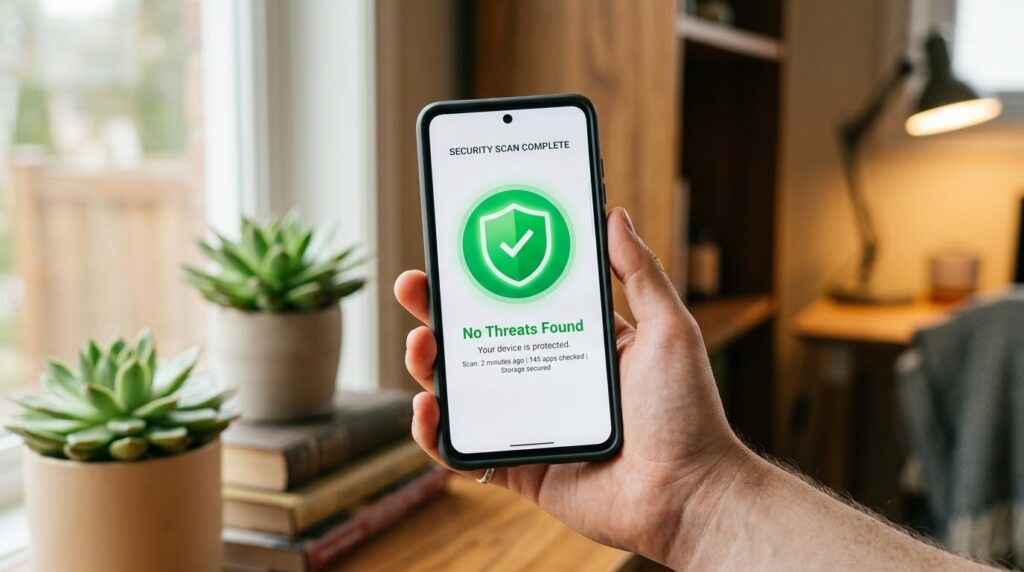
EXE files are one of the most common ways malware spreads on computers, and risky files can cause problems on phones too. Follow these rules every time:
- Never open EXE files from unknown people, messages or random websites.
- Scan the file first. Upload it to VirusTotal.com to check it with dozens of antivirus engines.
- Don’t trust apps that promise to “open any EXE file in one tap.” Many of them in app stores are fake, full of ads, or worse.
- Don’t download cracked software or “free” paid programs. These are the most common sources of infected EXE files.
- Never enter passwords or banking details inside an emulator or on a file source you don’t trust.
- Don’t turn on “Install unknown apps” for browsers or apps you don’t fully trust.
If your phone starts behaving strangely after opening a risky file, such as pop-ups, sudden slowness or apps opening by themselves, read why your phone may be acting weird and remove any suspicious apps right away.
Common Problems and Fixes
The EXE File Won’t Open at All
That’s normal on Android without an emulator or another tool. Choose one of the methods above instead of tapping the file directly.
Winlator Is Slow or Crashing
Close all other apps, lower the screen resolution inside the container, and make sure your phone has enough free RAM. Older or budget phones may simply be too weak for certain programs.
The Program Opens but Shows Errors
Many Windows programs depend on extra components. Try a different container setting or a different version of the program. Not every EXE file will work, even with the best setup.
The Phone Gets Very Hot
Emulation is demanding. Take breaks, remove the case, and avoid charging while running heavy programs.
My Storage Fills Up Quickly
Emulators, containers and installers can take several gigabytes. Delete files you no longer need and move large files to an SD card or the cloud.
Frequently Asked Questions
Can you open EXE files on Android?
Not directly. Android can’t run EXE files by itself, but you can open or run them using an emulator like Winlator, a remote desktop app, a cloud PC, or by opening the file as an archive.
What is the best app to open EXE files on Android?
For running Windows programs on the phone itself, Winlator is the most popular choice. For the best reliability, using Remote Desktop to control a real PC is better.
Is it safe to open EXE files on Android?
It can be, if the file comes from a trusted source and you scan it first. Unknown EXE files are risky because they’re a common way to spread malware.
Can I convert an EXE file to APK?
Not in any real, working way. Websites and apps that claim to convert EXE to APK are usually fake or unsafe. The two formats are built for completely different systems.
Why does my EXE file show as “unsupported” on my phone?
Because it’s a Windows file and your phone’s system doesn’t recognize it. You need a compatible tool, as explained above.
Will EXE files harm my Android phone?
An EXE file can’t run on Android by itself, so it usually can’t infect your phone directly. The danger comes from emulators, fake apps, or phishing links connected with those files.
Final Thoughts
So, how to open EXE file on Android? The honest answer is that it depends on what you want to do. If you just need a program, look for an Android version first. If you want to run Windows software, Winlator or Remote Desktop are your best options. And if you only want to peek inside the file, an archive app might be all you need.
Whatever method you choose, safety comes first. Scan unknown files, avoid fake “converter” apps, and download tools only from trusted sources. With a little care, you can safely open .exe on your Android phone and get the job done without putting your data at Risk.


