


We’ve all been there. You’re at a wedding, you open the camera to capture a perfect moment, and your phone throws up that annoying “Storage Full” message. Or you’re about to update an app and the update just refuses to install. It’s frustrating, and it always seems to happen at the worst possible time.
Here’s the good news: you almost never need to buy a new phone or delete everything you love. In most cases, a big chunk of your storage is taken up by stuff you don’t even know exists. In this guide, I’ll walk you through how to free up space on Android step by step, using methods that work on almost every phone, whether it’s a Samsung, Xiaomi, Oppo, Vivo, Infinix or Tecno.
Let’s get started.
First, Find Out What Is Eating Your Storage
Before you start deleting random things, take a minute to see where your space is actually going. It saves time, and you won’t end up removing something important.
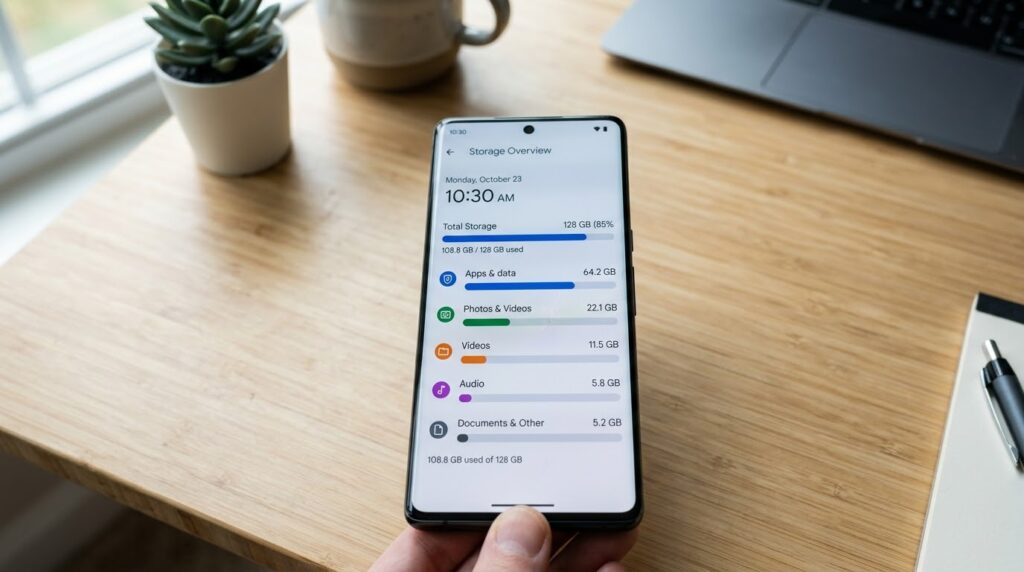
Open Settings and tap Storage (on some phones it’s under Battery and device care or About phone). You’ll see a colorful bar showing how much space is used by apps, images, videos, audio and other files.
For most people, the biggest culprits are photos, videos and apps. If you see a huge “Other” or “System” category, don’t panic. That’s normal, and some of it can be reduced by clearing cache, which we’ll cover below. Once you know what’s taking up space, the steps below on how to free up space on Android will be much easier to follow.
How to Free Up Space on Android: Step-by-Step Methods
1. Uninstall Apps You Don’t Use
Be honest with yourself: how many apps on your phone haven’t been opened in the last three months? Games you got bored of, shopping apps you installed for one sale, editing tools you tried once. They all sit there quietly using storage.
Go to Settings > Apps and sort the list by size. You’ll probably be surprised. Some games take up 2 GB or more, and even social media apps can grow to over 1 GB once they’ve stored enough data.
Uninstall anything you haven’t touched in a while. If you need it again someday, you can always download it again from the Play Store.
2. Clear the App Cache
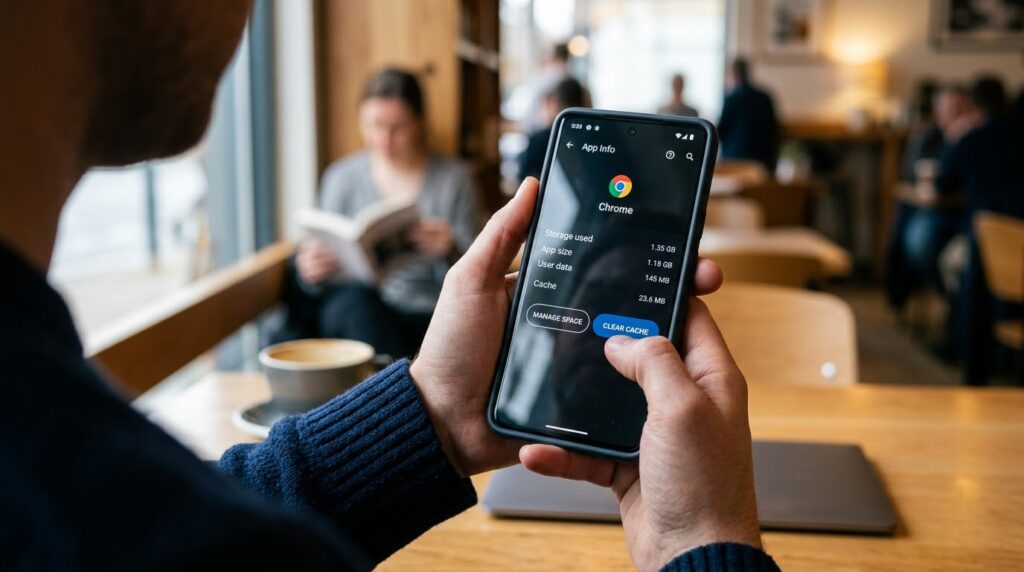
Cache is basically temporary data that apps save so they can load faster. A little cache is helpful, but over months it can pile up into several gigabytes, especially for apps like Chrome, Instagram, TikTok, YouTube and Facebook.
To clear it, open Settings > Apps, pick an app, tap Storage, and then tap Clear Cache. Be careful to choose Clear Cache and not Clear Data. Clearing cache is safe and won’t log you out. Clearing data resets the app completely, like a fresh install.
Do this for your five or six heaviest apps and you’ll often recover a surprising amount of space in just a couple of minutes.
3. Delete Large Files and Duplicates
Over time, phones collect files we’ve completely forgotten about: old videos, forwarded clips, downloaded PDFs, and the same photo saved three times.
The easiest way to find them is the Files by Google app, which is free on the Play Store. Open it and head to the Clean tab. It shows you junk files, large files, duplicate files and unused apps in one place. Review the suggestions and delete what you don’t need.
A quick tip: always glance at the list before confirming. The app is smart, but you know your own files better than it does.
4. Back Up Your Photos and Videos to the Cloud
Photos and videos are usually the number one reason Android storage fills up. A single 4K video can easily take up hundreds of megabytes, and a few months of photos can add up to many gigabytes.
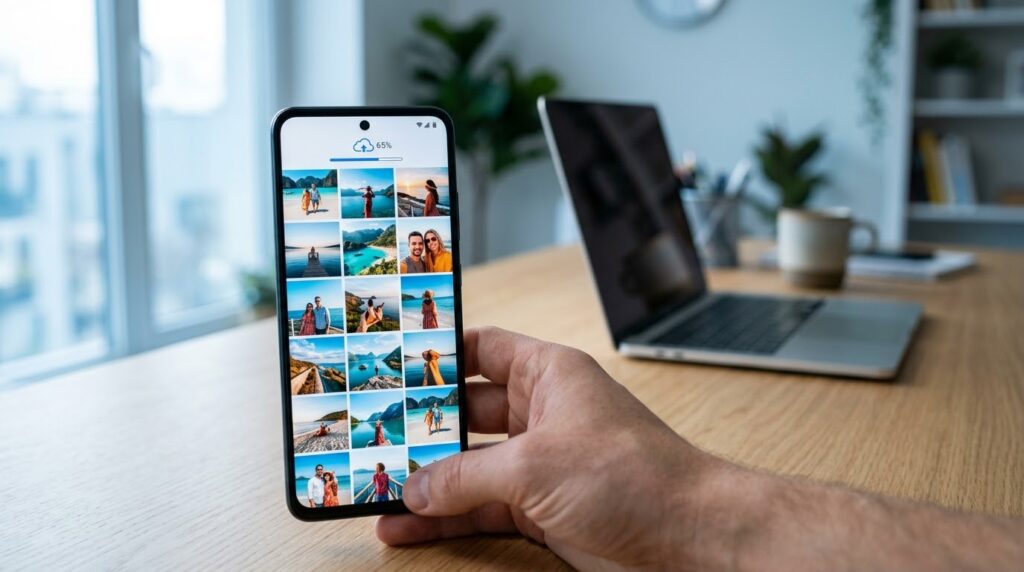
The smart move is to back them up online and then remove the copies from your phone. Google Photos is the most popular option. It comes with 15 GB of free storage shared across your Google account. Once your photos are backed up, you can use the Free up space option in Google Photos, which removes local copies that are already safely stored in the cloud.
Your memories aren’t gone. You can still open them anytime with an internet connection. Just make sure the backup has completely finished before you delete anything from your phone. Backing up your media is one of the biggest steps in how to free up space on Android, especially if you take a lot of photos. Backing up your media is one of the biggest steps in how to free up space on Android, especially if you take a lot of photos.
If you’re changing phones, don’t forget your contact either. Here’s how to transfer contact from android to android safely
5. Clean Up WhatsApp and Other Messaging Apps
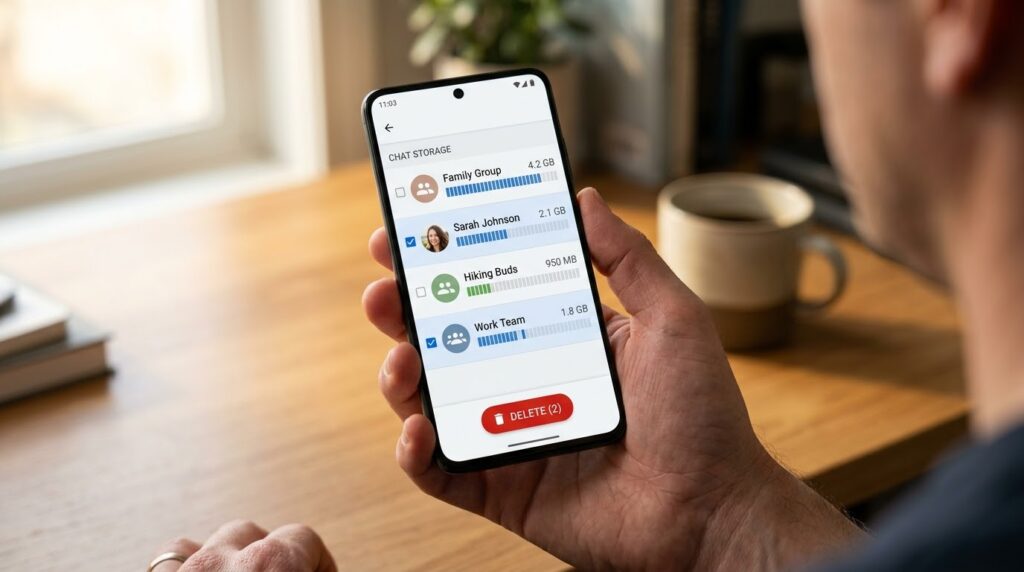
WhatsApp is one of the sneakiest storage eaters. It automatically saves every photo, video, voice note and document sent to you, including all those “Good Morning” images from group chats.
Open WhatsApp > Settings > Storage and data > Manage storage. WhatsApp will show you which chats take up the most space and also list large files and files that have been forwarded many times. Select and delete what you don’t need.
While you’re at it, go to Settings > Storage and data and turn off auto-download for photos and videos on mobile data. That way, your phone stops filling itself up without you noticing. The same trick works for Telegram and similar apps.
6. Empty Your Downloads Folder
The Downloads folder is where files go to be forgotten. Old APK files, university PDFs, receipts, random videos from browsers, and installers you used once all end up here.
Open your file manager, go to Downloads, and scroll through. You’ll likely find a lot of things you can delete without thinking twice. If something looks important, move it to Google Drive instead of keeping it on your phone.
7. Switch to Lite Versions of Apps
If your phone has limited storage, lite apps are a lifesaver. Facebook Lite, Messenger Lite and Instagram Lite use far less space than the regular versions, and they also work better on slow internet.
You do lose a few fancy features, but for everyday use, most people barely notice the difference. If you’re using a phone with 32 GB or 64 GB of storage, this switch alone can free up hundreds of megabytes.
8. Move Files to an SD Card
Many Android phones still have a microSD card slot. If yours does, this is one of the quickest ways to get breathing room.
Move your photos, videos, music and documents to the SD card using your file manager. You can also set your camera to save new photos directly to the card, so your internal storage doesn’t fill up again. Just remember to back up the card now and then, because SD cards can fail without warning.
9. Restart Your Phone and Update the Software
This sounds too simple, but it works more often than you’d think. A restart clears temporary system files and gets rid of background clutter that builds up over days or weeks.
After restarting, check for system and app updates. Updates often include bug fixes and better storage management. Sometimes a stuck “System” storage number drops noticeably right after an update.
Simple Habits to Keep Your Android Storage Free
Once you’ve learned how to free up space on Android, a few small habits will keep it that way. Cleaning your phone once is great, but keeping it clean is even better.
- Clear the cache of your most-used apps once a month.
- Turn off auto-download of media in WhatsApp and Telegram.
- Back up photos regularly so they don’t pile up on your phone.
- Install an app only when you really need it, and uninstall it when you’re done.
- Spend five minutes every few weeks checking Settings > Storage.
A cleaner phone also helps your battery last longer, so if your battery still drains quickly, read why your phone battery is dying so fast
Frequently Asked Questions
Is it safe to clear cache on Android?
Yes, it’s completely safe. Cache only contains temporary files. Your accounts, saved passwords, messages and app settings stay exactly as they were. The app may load a little slower the first time you open it afterward, because it has to rebuild its cache.
Why does my Android storage fill up so quickly?
Most of the time it’s photos, videos, social media apps and automatically downloaded media from messaging apps. Apps also grow in size as you use them, since they keep saving data in the background. Checking your storage breakdown in Settings will show you the main cause.
Will deleting apps remove my data?
It depends on the app. Apps linked to an account (like Instagram or Gmail) keep your data online, so it comes back when you log in again. Offline apps and games may lose their data unless you’ve backed them up, so check before uninstalling.
How much free space should I keep on my phone?
A good rule is to keep at least 10 to 15 percent of your storage free. Phones tend to slow down and apps crash more often when storage is almost full.
How do I get more storage on my phone?
You can get more storage by deleting unused apps, clearing app cache, backing up photos to the cloud, and moving files to an SD card. If your phone supports it, you can also use a USB OTG drive for extra space. Checking Settings > Storage is the first step in how to free up space on Android and find the real cause.
How to get more space on Android without deleting anything?
Back up your photos and videos to Google Photos or Google Drive, move files to an SD card, and clear cache. These steps give you extra room without losing your data.

Final Thoughts
Figuring out how to free up space on Android doesn’t need any technical skills or paid apps. Start with the easy wins: remove apps you don’t use, clear the cache, and back up your photos. Then clean up WhatsApp and your Downloads folder, and you’ll likely get back several gigabytes in under half an hour.
Make it a habit to check your storage every now and then, and you’ll rarely see that “Storage Full” warning again. Your phone will run smoother, your camera will always be ready, and you’ll have room for the apps and updates that actually matter. Bookmark this guide on how to free up space on Android, so you can come back whenever your phone starts running low again.


