

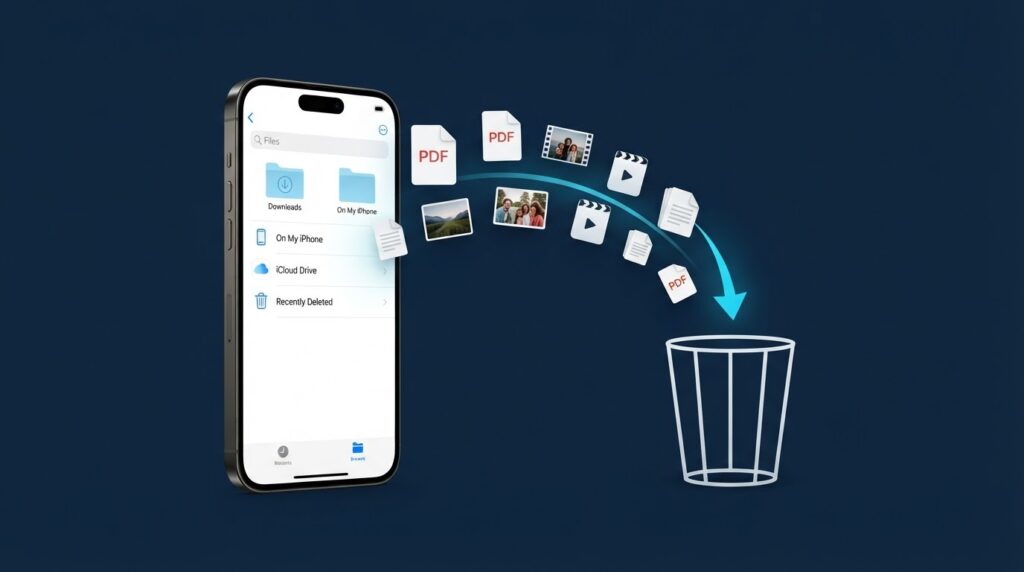
Running out of storage on your iPhone can be frustrating. You might have downloaded PDFs, saved documents, old videos, or duplicate files that you no longer need. Over time, these files can make it harder to organize your phone and keep track of important information.
If you are wondering how to delete files on iPhone, the good news is that you do not need to install a third-party cleaner app. You can remove unwanted downloads, documents, and folders using Apple’s built-in Files app.
However, deleting files is not always the same as freeing up storage. Some files remain in the Recently Deleted folder, while files stored in iCloud Drive may also disappear from your other connected devices.
In this guide, you will learn how to delete files on iPhone, remove downloaded files, permanently delete unwanted items, recover files you deleted by mistake, and free up storage safely.
Quick Answer: How to Delete Files on iPhone
The fastest way to delete a file is through the Files app.
- Open the Files app on your iPhone.
- Tap Browse at the bottom of the screen.
- Choose On My iPhone or iCloud Drive.
- Find the file you want to remove.
- Touch and hold the file, then tap Delete.
You can also delete multiple files at once by tapping the More button, selecting the files, and choosing Delete.
Deleted files from On My iPhone and iCloud Drive usually move to Recently Deleted, where they remain recoverable for up to 30 days. Files removed from Recently Deleted are permanently deleted and cannot normally be recovered through that folder. Apple Support.
1. How to Delete Files on iPhone Using the Files App
The Files app is the main place to manage documents and downloaded files on your iPhone. It can contain PDFs, ZIP archives, text documents, downloaded files, and other items saved locally or in cloud storage.
Follow these steps to remove unwanted files.
Step 1: Open the Files App
Find the Files app on your Home Screen or in your App Library.
Its icon looks like a folder. Tap it to open the app.
If you cannot find it, swipe down on your Home Screen and search for “Files.”
Step 2: Open Browse
Tap Browse at the bottom of the screen.
You should see available locations, which may include:
- On My iPhone: Files stored locally on your device.
- iCloud Drive: Files stored in Apple’s cloud storage.
- Downloads: A folder that may contain files downloaded from websites or other apps.
- Other locations: Additional cloud services or storage locations, if configured.
The exact locations depend on your installed apps and settings.
Step 3: Find the File You Want to Delete
Open the location where your file is saved.
For example, if you downloaded a PDF from Safari, look in the Downloads folder. If you saved a document directly to your iPhone, check On My iPhone.
Take a moment to confirm that you have selected the correct file. A document with a similar name might contain information you still need.
Step 4: Delete the File
Touch and hold the file until a menu appears.
Tap Delete.
Alternatively, tap the More button, choose Select, mark the files you want to remove, and tap Delete.
Repeat the process for other unwanted files.
Important: If the file is stored in iCloud Drive, deleting it may also remove it from other devices signed in to the same Apple Account with iCloud Drive enabled. Make sure you no longer need the file before deleting it.
2. How to Delete Downloaded Files on iPhone
Downloaded files can accumulate when you save documents, forms, images, and other items from the internet.
If your Downloads folder contains files you no longer need, you can remove them without affecting unrelated documents.
Step 1: Open Files
Launch the Files app and tap Browse.
Step 2: Open the Downloads Folder
Look under iCloud Drive or On My iPhone for Downloads. The location depends on your Safari download settings and where you chose to save each file.
If you cannot find a download, check both locations.
Step 3: Review Your Downloads
Look for files such as:
- Old PDF documents
- Duplicate downloads
- ZIP files you have already extracted
- Documents you no longer need
- Other files saved temporarily
Open a file if you are unsure what it contains.
Step 4: Remove Unwanted Downloads
Touch and hold a file and tap Delete.
To remove several items together, use the Select option and mark the files before deleting them.
This is a useful way to organize your Downloads folder without removing files you still need.
Read our guide How to free up storage on iPhone
3. How to Delete Multiple Files at Once on iPhone
Deleting files one by one can take a long time if you have many documents or downloads.
Fortunately, the Files app allows you to select multiple items and delete them together.
Follow These Steps
- Open Files.
- Tap Browse.
- Open the folder containing the files.
- Tap the More button.
- Select Select.
- Tap each file you want to remove.
- Tap Delete.
Before confirming, review your selection to make sure you have not marked any important documents.
If the files are stored in iCloud Drive, remember that deleting them can affect your other connected devices.
Can You Delete an Entire Folder?
Yes. You can delete an unwanted folder from a supported location in the Files app.
Touch and hold the folder, then choose Delete. You can also use the Select option where available.
Be careful when deleting folders because they may contain multiple documents you have forgotten about.
If you only want to remove a few files, open the folder and delete those items instead.
4. How to Permanently Delete Files on iPhone
Deleting a file from the Files app does not always remove it permanently straight away.
Files deleted from On My iPhone or iCloud Drive generally move to Recently Deleted. They normally remain there for up to 30 days unless you remove them sooner.
If you are certain you no longer need a file, you can delete it from Recently Deleted.
Step 1: Open Files
Launch the Files app and tap Browse.
Step 2: Find Recently Deleted
Look for Recently Deleted under the available locations. Depending on your iOS version, you may need to scroll through the locations.
Step 3: Select the Files
Open Recently Deleted.
Tap the More button, then Select, and mark the files you want to permanently remove.
Step 4: Delete Permanently
Tap Delete and confirm if prompted.
Once files are removed from Recently Deleted, they cannot normally be restored through the Files app.
Do not empty this folder until you have checked that you will not need any of its contents later.
5. How to Delete Photos and Videos on iPhone
Photos and videos are managed primarily through the Photos app, not the Files app.
If your goal is to remove old pictures, screen recordings, or large videos, use Photos.
Step 1: Open Photos
Launch the Photos app and browse your library.
Step 2: Select the Items
Tap Select and choose the photos or videos you want to delete.
You can select multiple items at once.
Step 3: Delete Them
Tap the Delete button and confirm your choice.
Step 4: Check Recently Deleted
Deleted photos and videos usually remain in the Recently Deleted collection for 30 days.
To remove them permanently, open Photos, go to Collections, find Recently Deleted, and authenticate if requested. Select the items and choose the delete option.
Warning: If iCloud Photos is enabled, deleting a photo or video on one device also deletes it from other devices using the same Apple Account and iCloud Photos. Make sure you have a separate backup if you want to keep a copy.
For the latest instructions, see Apple’s guide to deleting photos and videos.
6. How to Delete Files from iCloud Drive Without Confusion
iCloud Drive and local iPhone storage are not the same thing.
When you delete a file from iCloud Drive, the deletion can sync to your other connected devices. If your goal is only to free up space on your iPhone while keeping the file in iCloud, you should remove the downloaded copy rather than delete the cloud file.
Option A: Remove a Downloaded Copy
Open Files and navigate to iCloud Drive.
Find the downloaded file and touch and hold it. If the option Remove Download appears, tap it.
This removes the local downloaded copy while keeping the file in iCloud Drive, allowing you to download it again when needed.
The option may not appear for every file or location.
Option B: Delete the Cloud File
If you want to remove the file from iCloud Drive entirely, select Delete.
Be aware that this action can remove the file from other devices connected to the same iCloud Drive account.
Which Option Should You Choose?
Choose Remove Download when you want to save local storage but keep the file available in the cloud.
Choose Delete when you no longer want the file in iCloud Drive.
If your iPhone is running low on space, removing unnecessary local downloads may be a better choice than deleting important cloud documents.
7. How to Recover Files Deleted by Mistake
Accidentally deleting a document can be stressful, especially if it contains important information.
Before assuming that a file is permanently lost, check Recently Deleted.
Recover a File Using the Files App
- Open Files.
- Tap Browse.
- Open Recently Deleted.
- Find the file you want to recover.
- Touch and hold the file and tap Recover, or use Select and choose the recovery option.
The file should return to its original location if it is still available for recovery.
If you cannot find the file, check whether it was saved in another folder, another cloud service, or a different account.
For eligible iCloud Drive files, you can also check iCloud Drive on the web.
Files permanently deleted from Recently Deleted may not be recoverable through the normal Files app. Check your backups or the relevant cloud service’s recovery options if available.
8. Why Deleting Files May Not Free Up Much Storage
Sometimes you delete several files but notice little difference in the available storage.
There are several possible reasons.
Files Are Still in Recently Deleted
Some deleted files remain recoverable for a period of time. Check Recently Deleted and permanently remove only the items you are certain you no longer need.
You Deleted Cloud Files Instead of Local Downloads
Removing a file from iCloud Drive is different from removing its downloaded copy.
If your objective is to free local storage, look for Remove Download when that option is available.
The Files Were Not Taking Up Much Space
A few small PDFs or documents may use very little storage. Large videos, downloaded media, and other bulky files can make a bigger difference.
Other Apps Use Most of Your Storage
Your iPhone may be using significant space for photos, videos, app data, downloaded media, or other content.
To investigate, open Settings, tap General, and select iPhone Storage.
Review the recommendations and app storage breakdown before removing anything.
9. Tips for Managing Files on iPhone Safely
A little organization can help you avoid accidental deletions and keep your storage under control.
- Review before deleting: Open unfamiliar files before removing them.
- Back up important documents: Keep essential files in a trusted backup location.
- Check iCloud settings: Understand whether your files are stored locally or synchronized through iCloud Drive.
- Remove downloads you no longer need: Old installation files, duplicate documents, and unused downloads can clutter your folders.
- Avoid unknown cleaner apps: You generally do not need an extra app to delete ordinary files in Files.
- Check your storage settings: Use Settings > General > iPhone Storage to see which categories and apps take up space.
- Keep important copies: If a document matters, make sure you have another copy before permanently deleting it.
If your iPhone is also running slowly, review which apps and files are taking up space rather than deleting random items.
Frequently Asked Questions
1. Where are files stored on an iPhone?
Many documents and downloads are accessible through the Files app. Depending on where they were saved, they may be under On My iPhone, iCloud Drive, Downloads, or another connected storage location.
2. How do I delete PDF files on iPhone?
Open Files, find the PDF, touch and hold it, and tap Delete. If the PDF is stored in iCloud Drive, deleting it may also remove it from other connected devices.
3. How do I delete all downloads on my iPhone?
Open the Downloads folder in Files, tap the More button, choose Select, and mark the files you want to remove. Review your selection carefully before deleting them. Avoid selecting files you still need.
4. Does deleting files on iPhone permanently remove them?
Not always. Files deleted from On My iPhone or iCloud Drive generally move to Recently Deleted first. Removing them from Recently Deleted makes them permanently deleted through the normal Files workflow.
5. How do I free up space without deleting files from iCloud?
For eligible iCloud Drive files, use Remove Download rather than Delete. This removes the local downloaded copy while keeping the file in iCloud Drive.
6. Why can’t I delete a file on my iPhone?
The file may be managed by an app, synchronized from another source, or stored in a location with different permissions. Try locating the original file in the app or service where it was saved. Some files synced from a computer may need to be managed from that computer.
7. Can I recover permanently deleted files?
Files removed from Recently Deleted cannot normally be restored through the Files app. Depending on the file and service, a separate backup or cloud recovery feature may offer another option, but recovery is not guaranteed.
8. Does deleting files improve iPhone performance?
Freeing up storage can help when your device is nearly full, but deleting a few small documents will not necessarily make your iPhone noticeably faster. Check your storage breakdown and remove unnecessary large files or downloads first.
Final Thoughts
Learning how to delete files on iPhone can help you keep your documents organized and manage storage more effectively.
Use the Files app to delete PDFs, downloads, and other documents. Use Photos to remove unwanted pictures and videos. If you only want to save local storage while keeping a file in iCloud, look for Remove Download instead of Delete.
Most importantly, check Recently Deleted before assuming that a file is gone permanently, and verify your backups before removing anything important.
With these steps, you can manage your iPhone files more confidently without installing unnecessary apps or risking important documents.


