

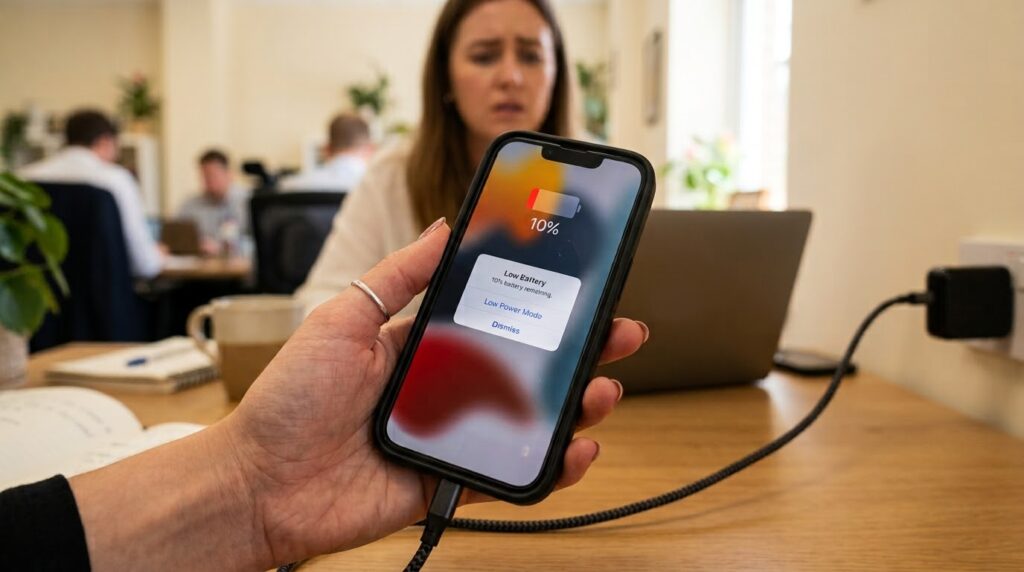
It’s 3 p.m., you’ve barely used your phone, and the battery is already at 20%. Or you wake up to find that your iPhone lost half its charge overnight. If that sounds familiar, you’re not alone, and you don’t need to rush to buy a new phone.
The truth is that most battery problems come from a few settings and habits that are easy to change. In this guide, you’ll learn how to save an iPhone battery with simple steps that take just a few minutes. These tips work on almost every modern iPhone, and many of them also help older models last longer.
Check What Is Draining Your Battery First
Before changing anything, find out where your battery is actually going. It saves time and shows you which tips matter most for you.
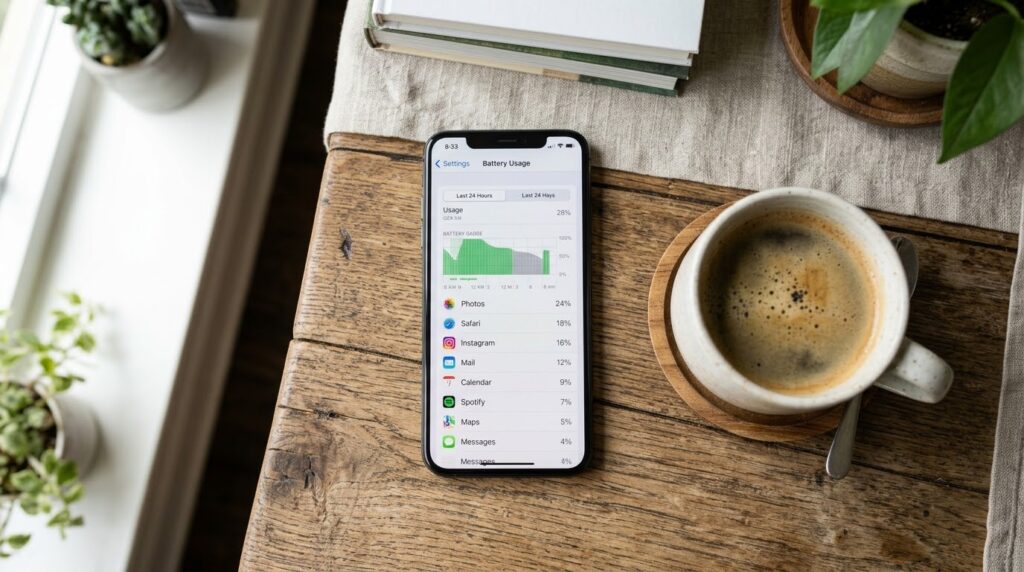
Open Settings > Battery and scroll down to the list of apps. You can switch between the last 24 hours and the last 10 days. You’ll see the percentage each app used.
If one app, such as a social media app, a game or a map app, is using a large share, that’s your first target. Also look at screen-on time. If your screen was on for five or six hours, a fast drop is normal, and the best way to extend iPhone battery life is simply to lower brightness and reduce screen time.
How to Save an iPhone Battery: 10 Easy Ways
Here are the ten changes that make the biggest difference. You don’t need to do all of them. Start from the top and see how your battery behaves.
1. Turn On Low Power Mode
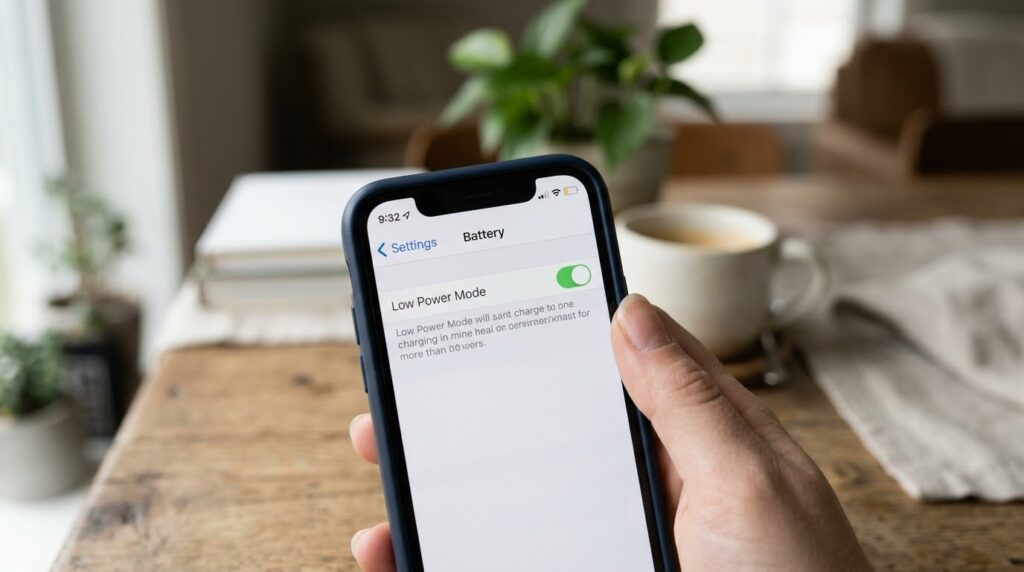
This is the quickest answer to how to save an iPhone battery when you’re running low. Low Power Mode reduces background activity, pauses automatic downloads, lowers screen brightness a little and limits some visual effects.
Go to Settings > Battery and switch on Low Power Mode. You can also add it to Control Center for one-tap access. Your iPhone will offer it at 20% automatically, but you can use it earlier, even during a busy day away from a charger.
2. Lower Your Screen Brightness and Turn On Auto-Brightness
The screen is the biggest battery user on any phone. A bright display all day drains power fast.
Go to Settings > Display & Brightness and make sure Auto-Brightness is on (it’s under Settings > Accessibility > Display & Text Size on some versions). Then lower the brightness manually when you’re indoors. Even a small reduction adds up over a full day.

3. Shorten the Auto-Lock Time
If your screen stays lit for two or five minutes after you stop using it, it’s wasting battery. Open Settings > Display & Brightness > Auto-Lock and choose 30 Seconds or 1 Minute.
4. Turn Off Background App Refresh for Apps You Don’t Need
Many apps quietly refresh their content in the background, even when you’re not using them. That’s helpful for a few apps, but wasteful for most.
Go to Settings > General > Background App Refresh. You can turn it off completely or switch it off one app at a time. Keep it on only for apps you really need updated, such as messaging or navigation apps.
5. Limit Location Services
Apps that constantly track your location are heavy battery users. Go to Settings > Privacy & Security > Location Services and review the list. For most apps, choose While Using the App or Never instead of Always.
Also scroll to the bottom and check System Services. Some items there, like location-based suggestions and ads, can be switched off without losing anything important. If you ever need to turn them back on, see our guide on how to turn on location services on iPhone.
6. Reduce Notifications
Every notification wakes up your screen and uses a little energy. Dozens of them a day add up to a noticeable amount.
Open Settings > Notifications and go through the list. Turn off alerts from apps you don’t care about, and switch less important ones to Notification Summary so they arrive in batches instead of one by one.
7. Use Dark Mode (If You Have an OLED iPhone)
On iPhones with OLED screens (iPhone X and newer, except for a few models like the XR, 11 and SE), dark mode actually saves battery, because black pixels are switched off. On LCD screens, the difference is very small.
Go to Settings > Display & Brightness and choose Dark, or set it to switch automatically at night.
8. Turn Off Motion Effects, Raise to Wake and Keyboard Haptics
These small features look nice but quietly use power:
- Reduce Motion: Settings > Accessibility > Motion > Reduce Motion
- Raise to Wake: Settings > Display & Brightness > Raise to Wake (turn off)
- Keyboard haptics: Settings > Sounds & Haptics > Keyboard Feedback > Haptic (turn off)
If your iPhone has an Always-On Display, you can also switch it off in Settings > Display & Brightness to save more.
9. Manage Mail Fetch, Wi-Fi and Mobile Data
Checking for new emails every few minutes uses battery. In Settings > Mail > Accounts > Fetch New Data, switch Push off and set the schedule to Every 15 Minutes or Manually.
Also remember that Wi-Fi uses less battery than mobile data. When you’re at home or work, stay on Wi-Fi. And if your signal is weak, your iPhone works harder to stay connected, which drains power quickly. In areas with poor coverage, turning on Airplane Mode for a while can help. If you use a 5G phone, Settings > Cellular > Cellular Data Options > Voice & Data lets you choose 5G Auto, which switches to 4G when 5G isn’t needed.
10. Keep Your iPhone Updated and Restart It Sometimes
Apple regularly releases updates that fix battery bugs and improve efficiency. Go to Settings > General > Software Update and install the latest version. Update your apps from the App Store as well, because an old app version can cause battery drain by itself.
A restart every week or two also clears stuck background processes. Simple, but it often helps.
Check Your Battery Health
If you’ve tried everything and your iPhone battery is still draining fast, the battery itself may be worn out. Every battery loses capacity over time.
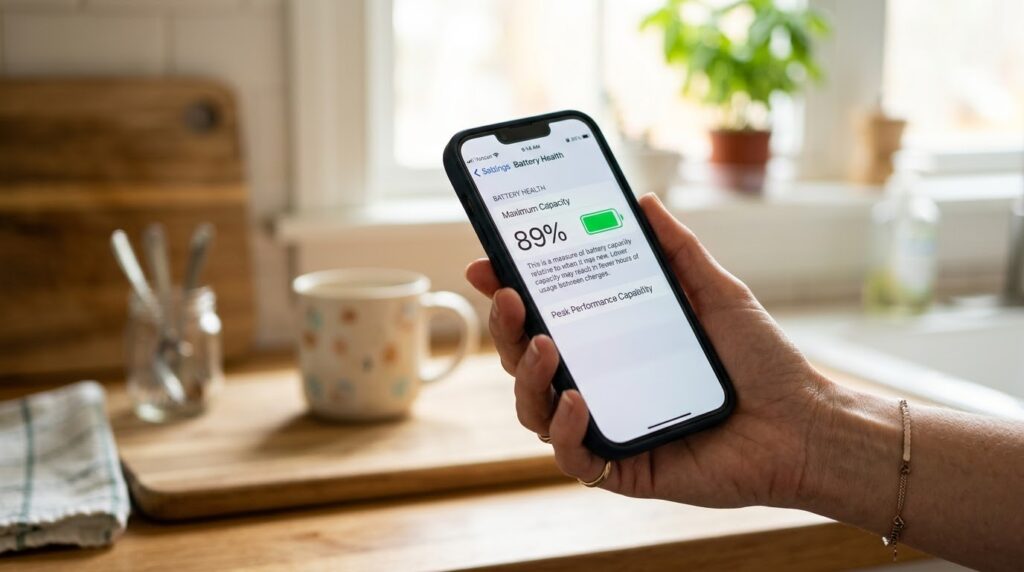
Go to Settings > Battery > Battery Health & Charging. You’ll see Maximum Capacity, shown as a percentage. If it’s above 85% or 90%, your battery is in good shape. If it has dropped below 80%, you’ll probably notice shorter battery life, and replacing it may be the best way to save an iPhone battery for the long term.
Signs of a worn battery include:
- The phone drops quickly from 30% to 5%
- It shuts down suddenly even when it shows charge
- It gets hot while charging
- You need to charge it two or three times a day
A replacement at Apple or an authorized service provider is usually much cheaper than buying a new phone. Avoid cheap, low-quality batteries from unknown shops, because they can fail early and may be unsafe. If the battery looks swollen or the screen is lifting, stop using the phone and get it checked right away.
Healthy Charging Habits for a Longer-Lasting Battery
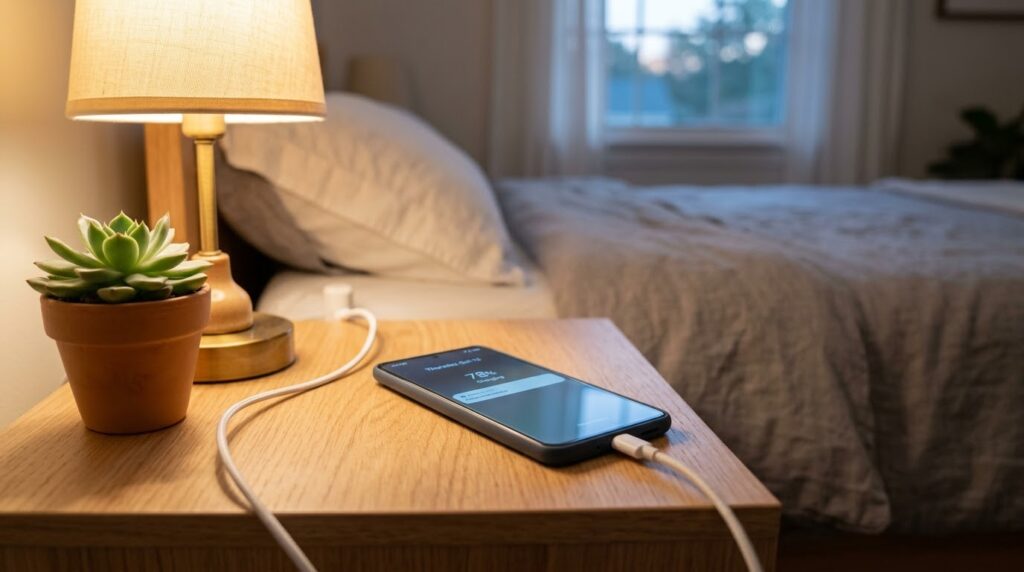
How you charge matters just as much as how you use your phone. A few habits help your battery stay healthy for years:
- Turn on Optimized Battery Charging in Battery Health & Charging. It learns your routine and slows charging past 80% until you need the phone.
- Try to keep your charge between 20% and 80% when you can.
- Avoid letting your iPhone drop to 0% often.
- Use Apple-certified or good-quality chargers and cables.
- Don’t charge your phone under a pillow or on a bed.
- Take off thick cases if the phone gets hot while charging.
Heat is the biggest enemy of a battery. Don’t leave your iPhone in a hot car, in direct sunlight, or on a charger while you play heavy games.
Don’t Forget Storage
This one surprises many people. When your storage is almost full, your iPhone has to work harder to save temporary files and run apps, which can make it slower and warmer. Cleaning it up helps performance and, indirectly, battery life. If your storage is above 90% full, read our guide on how to free up space on iPhone and see if your battery improves.
Common Myths About Saving iPhone Battery
“Closing apps saves battery”
Usually not. Swiping apps away forces them to reload from scratch next time, which can use more power. Let iOS manage background apps and restrict only the ones that misbehave.
“Turning Wi-Fi and Bluetooth off all the time helps a lot”
The effect is small on modern iPhones. It only matters if you really aren’t using them for long periods.
“Charging overnight ruins the battery”
Modern iPhones stop charging when full, and Optimized Battery Charging reduces wear. Occasional overnight charging is fine.
“Battery saver apps help”
Third-party battery saver apps rarely help and sometimes make things worse. The built-in settings are better and safer.
Frequently Asked Questions
What is the best way to save an iPhone battery?
Turn on Low Power Mode when you need extra hours, lower brightness, reduce background activity and limit location access. These changes make the biggest difference for most people.
How to save an iPhone battery overnight?
Turn on Low Power Mode, switch off unnecessary notifications, and use Wi-Fi instead of mobile data. If your battery still drops a lot overnight, check Settings > Battery for an app that’s draining it in the background.
Why is my iPhone battery draining so fast all of a sudden?
A sudden change usually comes from a new app, a recent update, poor signal or a background process stuck in a loop. Restart the phone, check your battery usage list, and update iOS and your apps. If nothing changes, the battery itself may be worn out.
Does Low Power Mode damage the iPhone?
No. It simply reduces some background activity and visual effects. It’s completely safe to use whenever you like.
How long should an iPhone battery last?
Most iPhones last a full day of normal use. A battery usually stays healthy for two to three years before its capacity drops noticeably.
Does 5G drain the iPhone battery faster?
It can, especially in areas with weak 5G signals. Using 5G Auto helps your iPhone switch to a more efficient connection when you don’t need the extra speed.
Final Thoughts
Now you know how to save an iPhone battery with simple, practical steps. Start with Low Power Mode, lower your brightness, limit background activity and location access, and keep your software updated. Those changes alone are enough to extend iPhone battery life by hours for most people.
If your battery still drains quickly after that, check Battery Health. A tired battery might need replacing, and that’s far cheaper than a new phone. Build a few good charging habits too, and your iPhone will stay reliable for years. The next time someone asks you how to save an iPhone battery, you’ll have a full checklist ready.


